Search BlockBee
Search BlockBee blog posts and documentation.
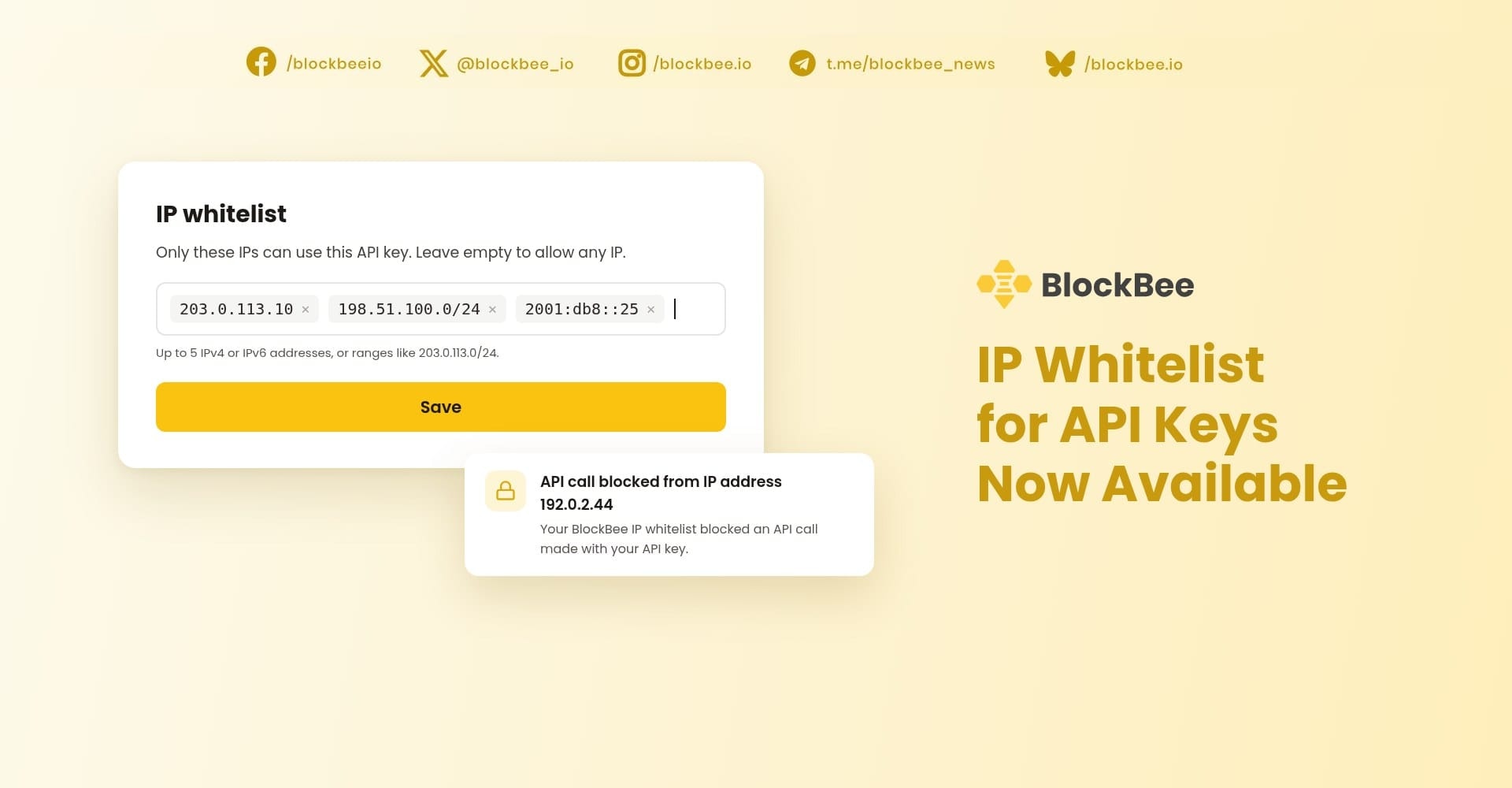
IP Whitelist for API Keys Now Available
Lock your API key to your own servers. Calls from any other IP are refused, and we email you when one is blocked.
You can now lock your BlockBee API key to the IP addresses of your own servers. Calls from any other IP are refused, so a key that leaks from a log file or a code repository can't be used from anyone else's machine. If a call is blocked, we email you.
Why lock your API key to your servers?
Your API key creates payment addresses, checkouts, deposits and subscriptions, and with an API Key V2 it also sends payouts. Keys end up in config files, environment variables, logs and backups, and each copy is a chance for one to leak.
With an IP whitelist, the key alone is no longer enough. A call has to come from one of the addresses you trust.
How do you set it up?
- In the BlockBee Dashboard, open the API Key page of your profile.
- Find the IP whitelist section, below your API key.
- Type your server's IP address and press Enter, or type a comma after it. You can add up to 5 IPv4 or IPv6 addresses, or ranges such as
203.0.113.0/24. - If your server also has an IPv6 address, add it too.
- Click Save and confirm the change with your verification code.
Changes apply to the next API call. Each profile has its own API key and its own whitelist. Leave the list empty and the key works from any IP, as it does today.
What happens when a call is blocked?
Once the list has entries, every call made with the key is checked: payments, checkouts, deposits, subscriptions and payouts. A call from any other IP gets an HTTP 403 response:
API Key not allowed from IP address 192.0.2.44, check the IP whitelist in your BlockBee Dashboard
The response shows the IP that made the call, never your list.
We also email the account owner with the IP address, its location when we know it, the time and the API key's name. You get at most one of these emails a day per profile, so a burst of blocked calls won't flood your inbox.
If the IP in the email is one of your servers, add it to the whitelist. If it isn't, someone else has your key: revoke it and generate a new one on the API Key page.
Before you turn it on
- Use the IP that BlockBee sees. That is your server's public outgoing address, which can differ from its internal one. If your servers sit behind a load balancer or a NAT gateway, add the gateway's address.
- Plugins run on your shop's server. If you use a plugin such as WooCommerce, whitelist the IP of the server that hosts your shop.
- Hosts with changing IPs. Some cloud and serverless platforms send requests from addresses that change. Use a fixed outgoing IP or a range your provider publishes, or leave the list empty.
- This is not the callback IP list. The whitelist controls who can call BlockBee with your key. If your firewall blocks incoming webhooks, you still need to allow BlockBee's callback IPs, listed in the webhooks docs.
Get started
Open the API Key page in your Dashboard and add your server's IP. Questions? Reach us through the live chat on blockbee.io or at [email protected].
Support
Review Us